A Teacher’s Guide to Using Mood Magic in the Classroom
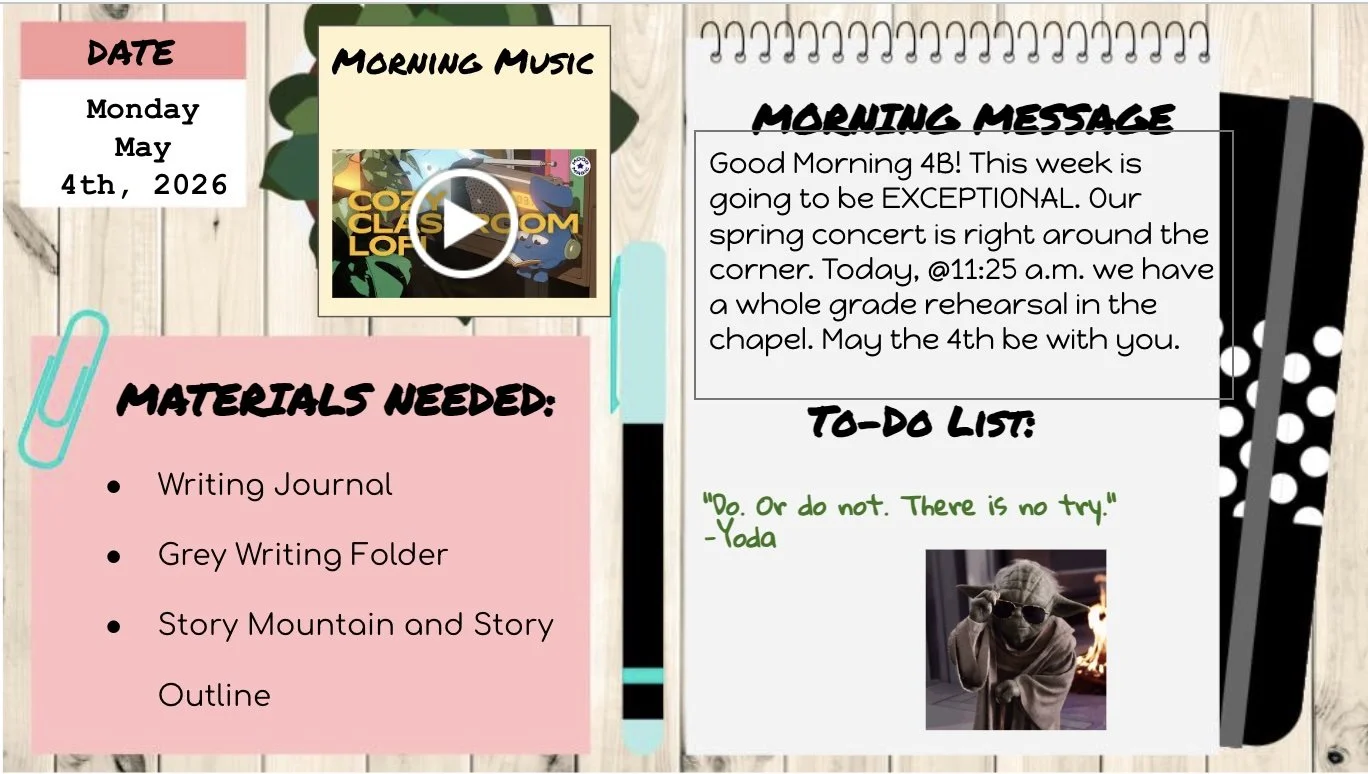
This is how I integrate Mood Magic directly into my Google Slides to use on my Smartboard.
A Stuffy Screen
The warm glow of my 7th-grade math teacher’s antique overhead projector always made me feel claustrophobic. He would stumble through transparencies, endlessly adjusting and readjusting the focus while half the class stared into space. Fast forward a million years, and that bored 7th grader is now a 4th-grade teacher with a Smartboard, a desktop computer, and an entire digital universe at his fingertips. But I’ve learned that having more technology does not automatically mean better teaching. In fact, figuring out what to put on a screen, and how to use it effectively without overwhelming students, has become a learning curve all its own.
Sound That Does the Work for You
Many teachers have a bell or chime they use to redirect student focus toward the speaker. This simple yet powerful tool leverages a familiar auditory cue, ding, to help shift attention. I love my little three-tone chime.
As I’ve written about before, music is also an incredible auditory tool that can help students regulate emotions, redirect focus, and generally help manage a classroom in ways that voices and screens alone simply cannot. My favorite resource for classroom music has to be Mood Magic Music. They have an entire YouTube channel filled with peaceful, vibey music designed to help students feel calm and regulated. My go-to resources are their hour-long playlists.
What I especially appreciate is that they pair calming music with low-stimulation animation. This allows me to play a video in class without students getting distracted by tiny visual details, which I often find happens with other calming music compilations online.
I like to have this music playing when students enter the classroom in the morning, when they are quietly working on a project or essay, or even during independent math work time. They have music tailored for many different classroom moments.
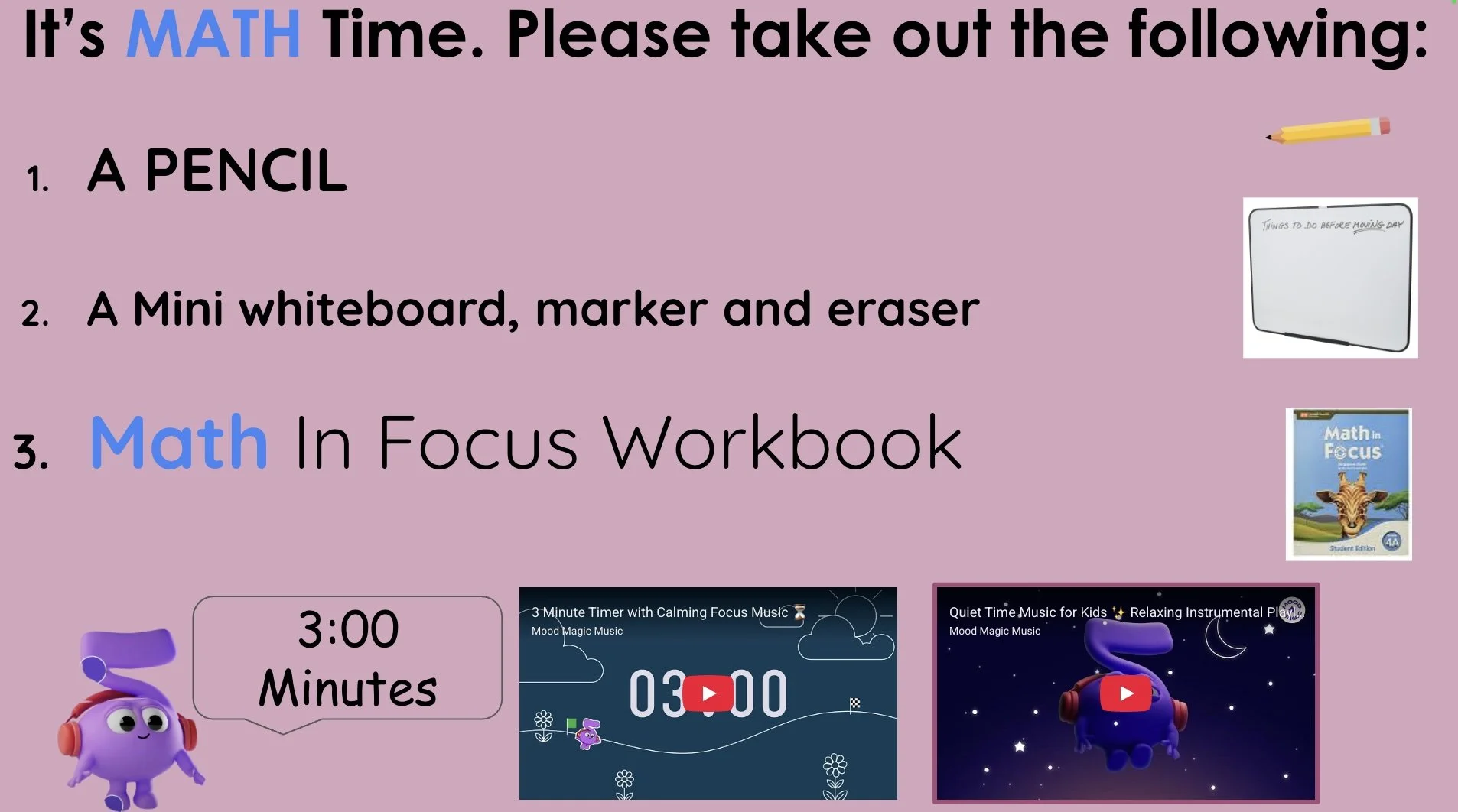
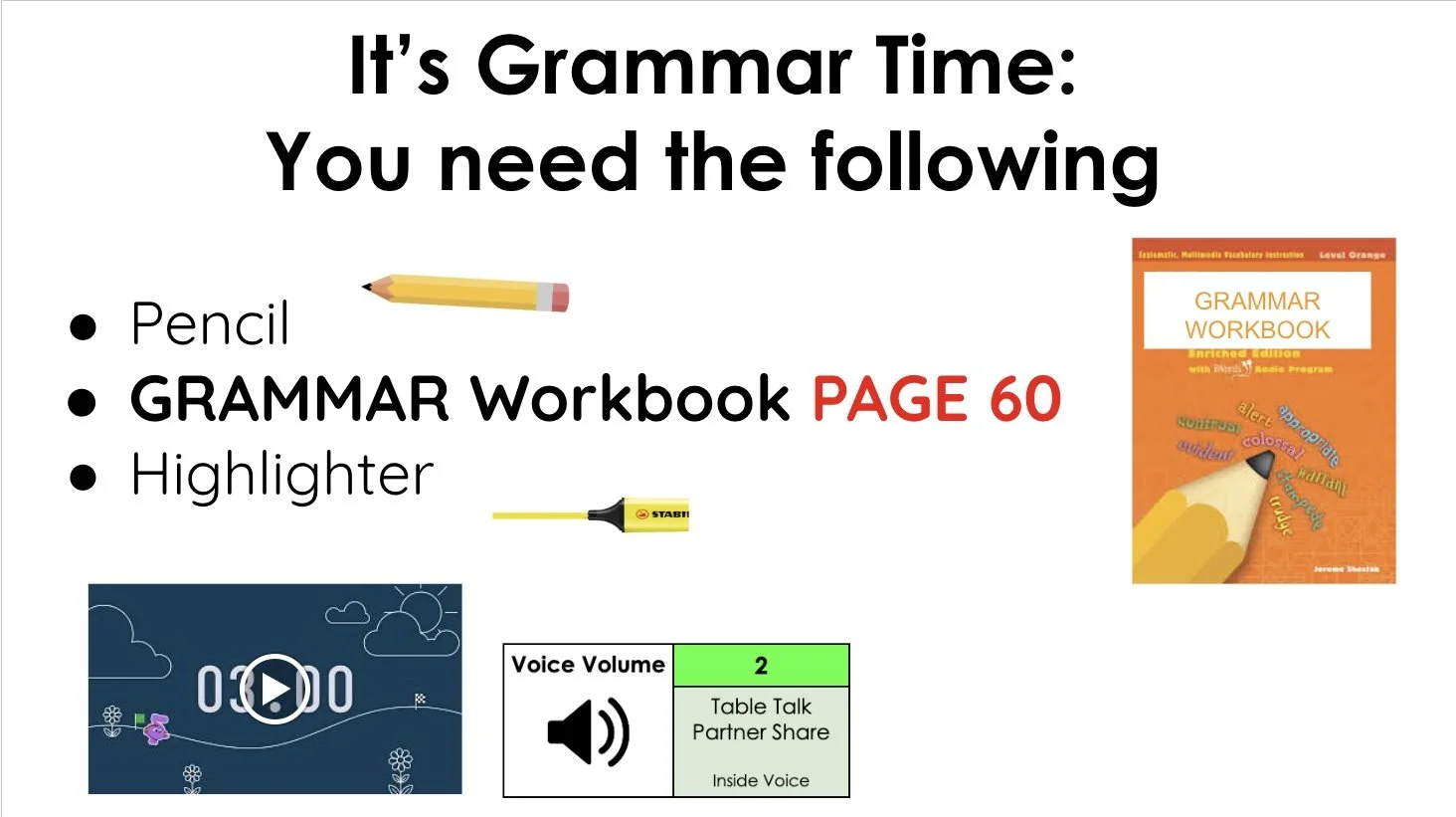
Here’s where it all comes together: I embed a Mood Magic video directly into a Google Slide so I can display written instructions on my Smartboard while simultaneously playing calming music and visuals. I’m still experimenting with exactly how large to make the video window within the slide. I often find myself asking questions like: Is the video taking up too much screen space? What type of music best matches this activity?
One of my favorite Mood Magic resources is their digital timers. These timers are also low-stimulation and end with a soft chime, so students know when time is up even if their noses are buried in work or they are deep in conversation. I love embedding these timers into my beginning-of-class instructional slides. Students can clearly see the materials they need, the directions for getting started, and how much time they have to prepare.
Time management is a difficult executive functioning skill to master, even for adults. These timers are just as helpful for me as they are for my students, keeping all of us on track through visual and auditory cues.

Sound That Does the Work for You
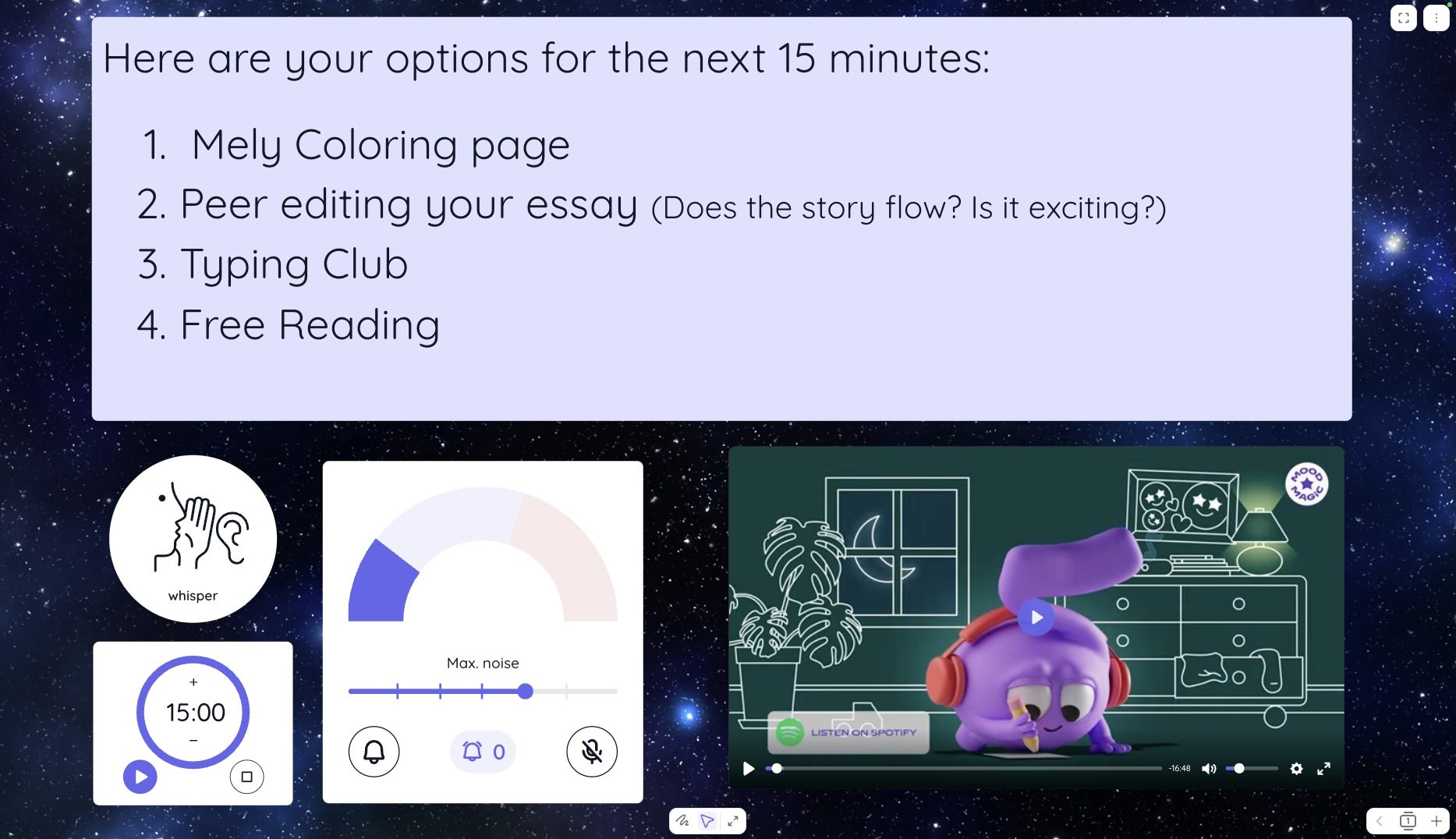
Another fantastic resource I have been experimenting with this semester is a web app called Classroomscreen. The app provides a blank canvas backdrop where you can add widgets. It feels like a Google Slide that I can actively interact with without needing to exit presentation mode, edit a slide, and restart the slideshow all over again.
Classroomscreen offers a litany of useful widgets, including timers, volume meters, text boxes, polls, checklists, and random name pickers. I love how quickly I can edit and adjust my screens in real time. It has helped maintain the flow of my teaching while providing what feels like a thousand additional classroom management tools.
Best of all, I can embed Mood Magic YouTube videos directly into the screen itself. Within just a minute or two, I can create a screen that includes instructions, calming music, a timer, and a volume meter all at once. It’s incredible how much teaching time this ed-tech combination has given back to me.
It is definitely a tool I will continue exploring and refining next semester.
At the end of the day, a smart board is only as effective as the experience it creates for students. I have learned that the best digital tools are not necessarily the flashiest ones, but the ones that help classrooms feel calm, clear, and purposeful. Sometimes great teaching is not about adding more to a screen, but about thoughtfully deciding what deserves to be there in the first place.